How can webmasters and marketing companies set their location after Google removed its geo-location tool
Google recently removed a google console search tool that allowed users to change their geo-location which has caused a backlash from webmasters, marketing and SEO companies who used the tool often to get accurate ranking results for their clients based in otehr areas
Google says that the location search filter “was getting very little usage,” so they removed it. Could it be they removed the search tool but retained the ability via an advanced search screen or something similar? A quick search for “change Google search location” may give you a little hope; there’s an answer box, and even a support article entitled, “Change your location on Google.” Problem solved? Unfortunately, no
Google’s idea of being helpful is telling you how to change the auto-detected search location (usually by IP) to a “more precise” location they select for you, usually based on search history. For me, that meant my location changed from New York City (by corporate IP address) to Columbia, SC (my actual location). But I need to see how my Dallas, TX, client is showing in SERPs localized to that area.
Following are four ways to show localized Google Search results.
Google AdPreview
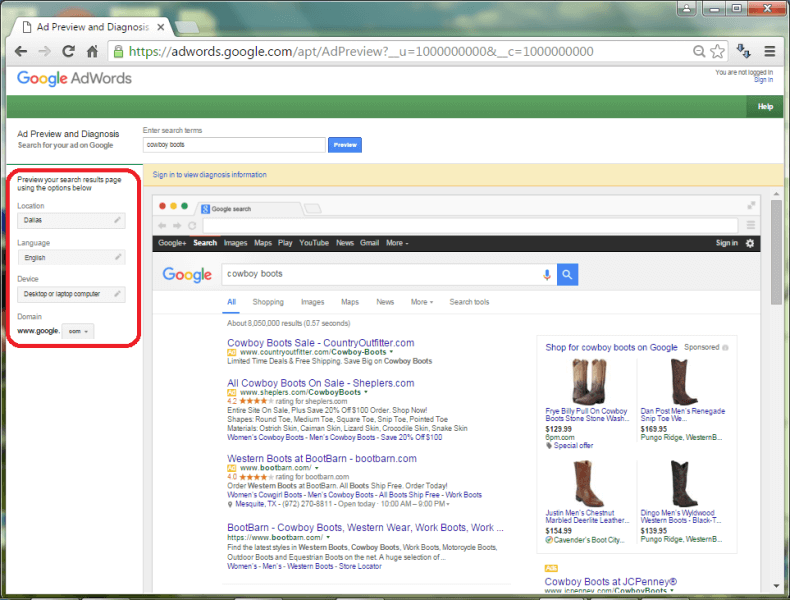
It may be intended for use by Google AdWords participants, but Google’s AdPreview tool is actually available whether you’re logged in or out, regardless of whether or not you have a Google AdWords account.
In my opinion, this is the easiest and most accurate way to emulate a search from a locality other than your own but also emulate from different devices, languages and countries.
ISearchFrom.com
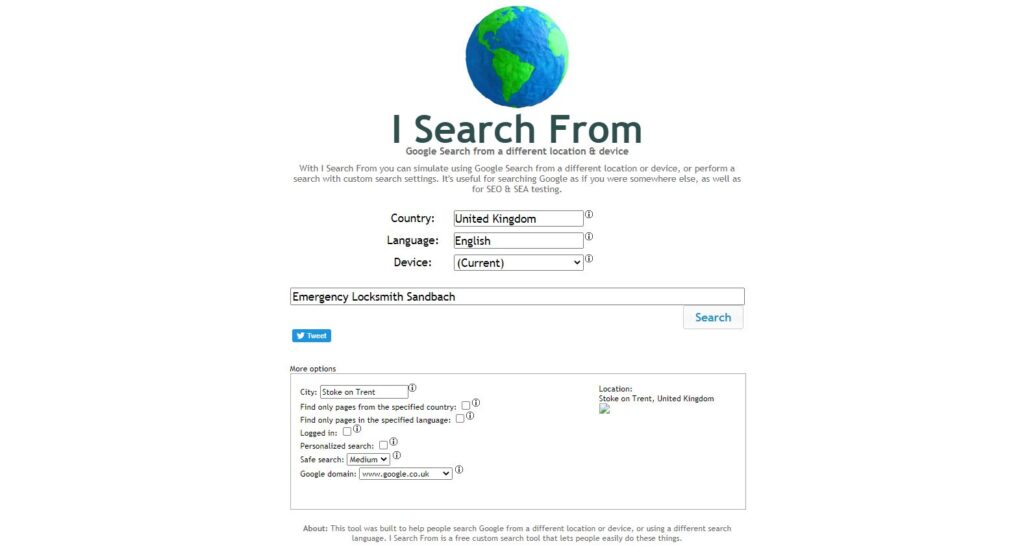
Another simple method is to use the www.isearchfrom.com website. It works a lot like Google’s AdPreview tool but allows a few additional search parameters like Safe Search settings (and a few others that don’t seem to make a difference in the results).
The site’s footer does say it is not actively maintained, so who knows how long this utility will work.
Location Emulation In Google Chrome

There is a feature within Google Chrome’s Developer Tools that allows you to emulate any latitude and longitude. Hat tip to the Digital Inspiration blog for this method:
- Open the Chrome browser.
- Press [CTRL]+[SHIFT]+I to open Developer Tools.
- Click “Console” and then the “Emulation” tab. If you do not see the Emulation tab while in the Console, press the [ESC] key and it will appear.
- Within the Emulation tab’s navigation, choose “Sensors.”
- Check the box next to “Emulate geolocation coordinates.”
- Open a new tab with a utility like http://www.latlong.net/ to look up the precise latitude and longitude for a locality.
- Copy and paste the latitude and longitude over to the “Emulate geolocation coordinates” input boxes.
- Go to Google.com and submit your query to get results that match those you’d get if you were actually in that locality.
The &near= Search Parameter
There is a URL parameter you can append to your Google search to return results near a certain location — just add &near=cityname to your query string, where cityname is your desired locality.
For example, after searching for “cowboy boots,” add &near=Dallas to the query URL, like so: https://www.google.com/?gws_rd=ssl#q=cowboy+boots&near=Dallas. There’s actually a bookmarklet available online to make this even easier.
With that said, I have noticed the organic search results are slightly different when using the &near= parameter than when using AdPreview and Google Chrome Location Emulation. I don’t totally trust this method.
Final Thoughts
So there you go — four ways to show localized Google search results even though the search tool has been retired. I think it’s clear the AdPreview tool is the easiest, most accurate option, but perhaps you have a method you’d like to share?